How to Use TidyText
Copy your ChatGPT/Claude output
Go to ChatGPT or Claude and use the copy button and paste it into the text input.

Example of a ChatGPT/Claude output with a copy button. Paste and press the Tidy button
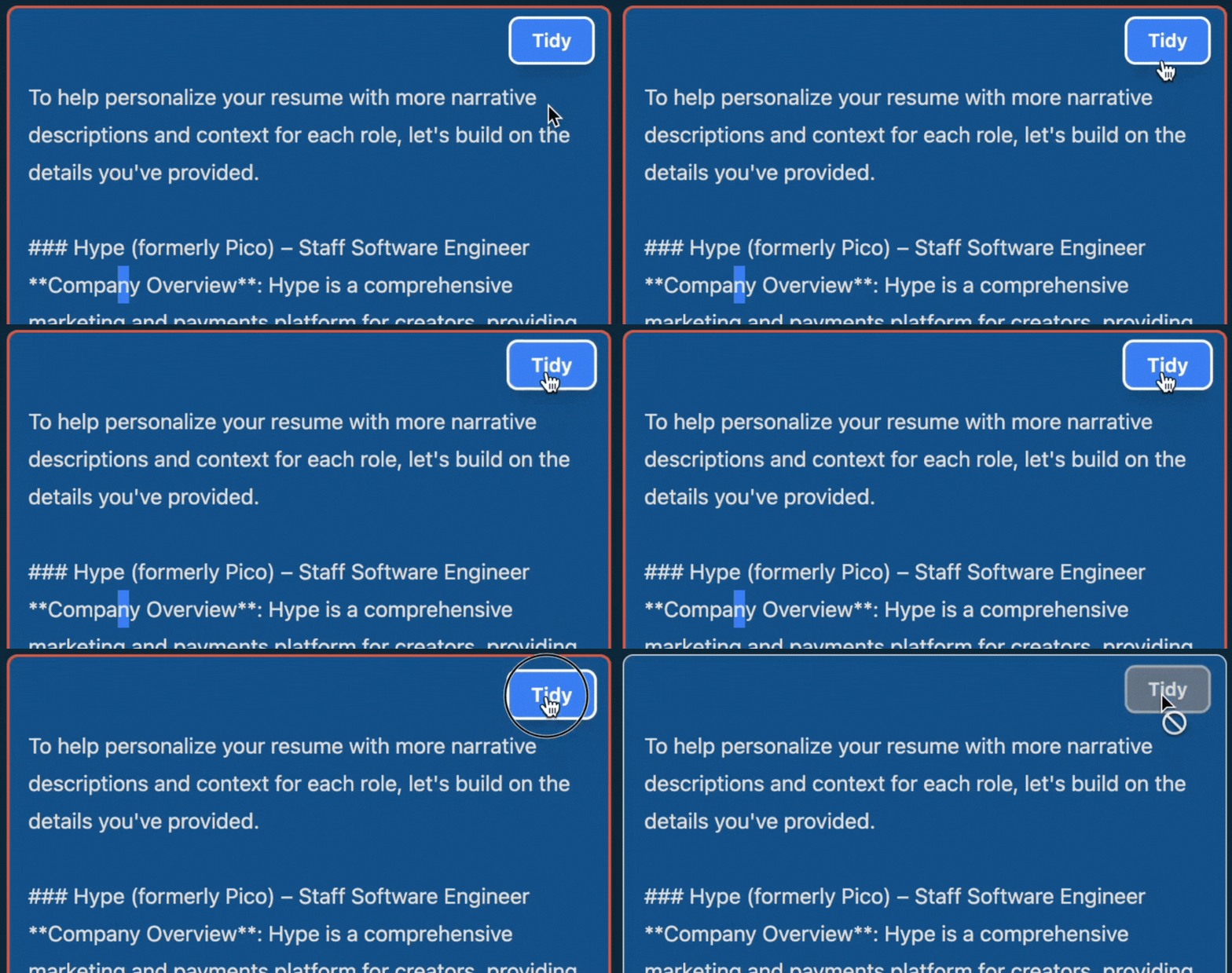
Click Tidy to convert markdown to rich text.
Example of the TidyText output after pressing Tidy. Press the Copy button to copy the output to your clipboard.
Paste into Google Docs, Word, Gmail, Slack, or any rich-text field that would otherwise show raw Markdown.